How to Obtain AppID/App Secret of Message Channels
I. Preparatory Instructions
1.1 What are App ID/App Secret
- App ID: The unique identifier of an application, used by the platform to verify your application's identity. It is globally unique and cannot be modified.
- App Secret: The application secret key, used in conjunction with App ID for interface signature and identity authentication.
1.2 General Preconditions
- Possess a valid account on the corresponding platform.
- For Feishu / DingTalk, you must have enterprise administrator permissions or application creation permissions.
- Complete the real-name authentication required by the platform (mandatory for both QQ individual and enterprise developers; automatically completed for Feishu / DingTalk enterprise accounts).
- Agree to and sign the developer service agreement of the corresponding platform.
II. Methods to Obtain QQ App ID and App Secret
2.1 Register and Log in to Tencent Open Platform
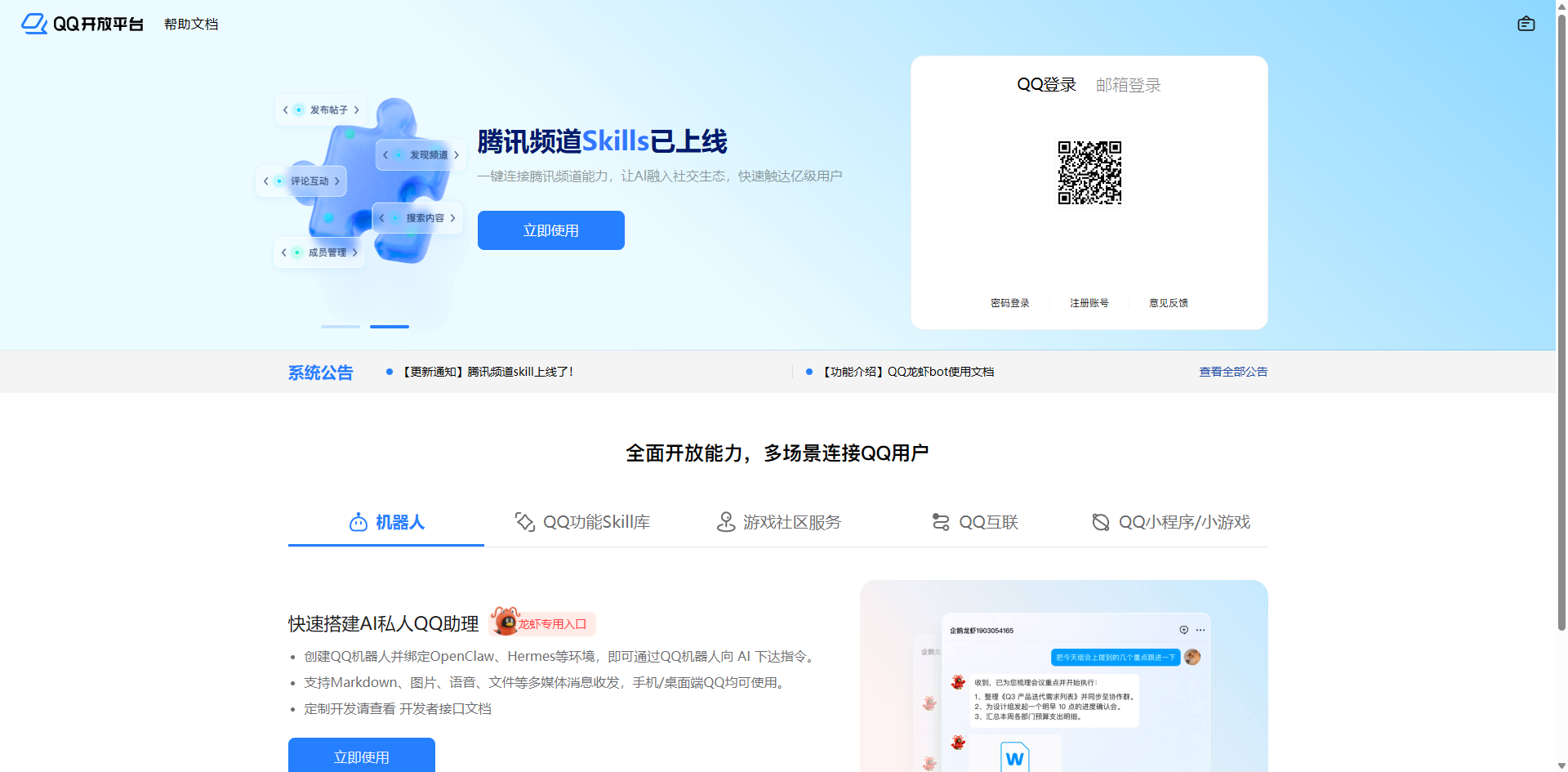
- Open a browser and visit the official website of Tencent Open Platform: https://q.qq.com/#/
- Log in with your QQ account via QR code scanning or password.
- Complete developer real-name authentication for the first login (supports both individual and enterprise types).
- Read and sign the Tencent Open Platform Developer Service Agreement.
2.2 Create a Robot
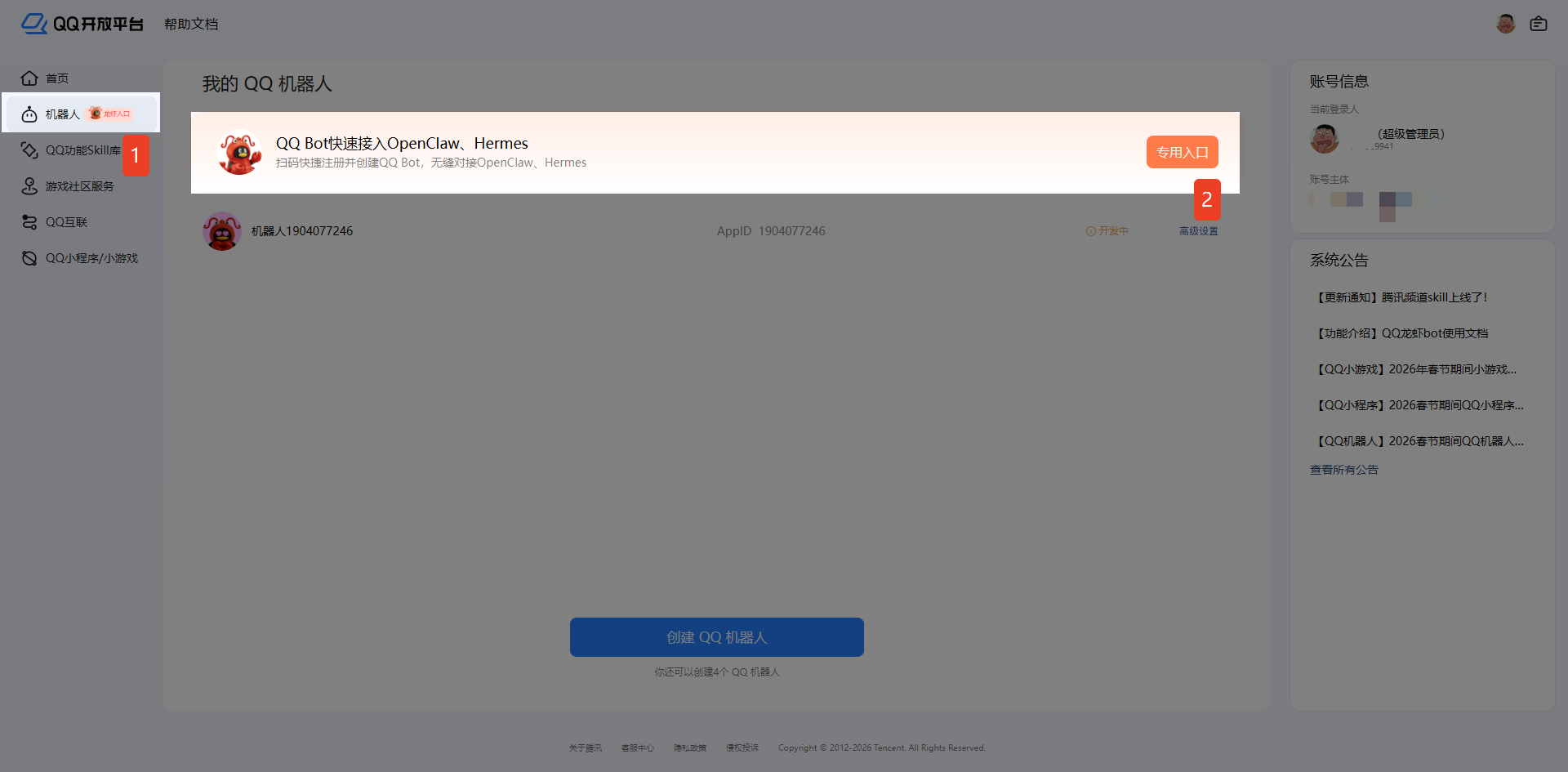
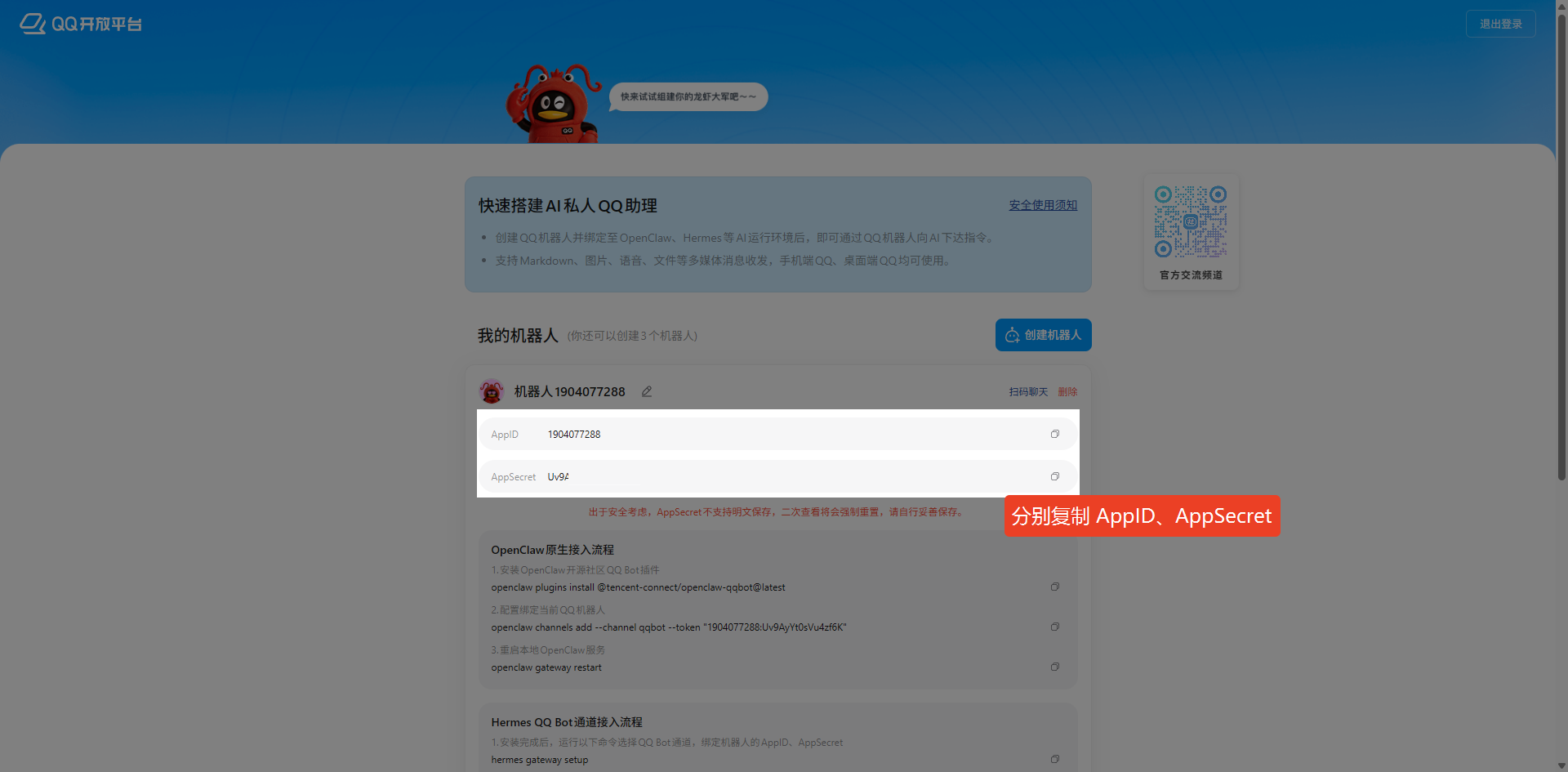
- After logging in, click "Robots" in the left menu bar.
- Locate the entry "QQ Bot Quick Access to OpenClaw, Hermes" and click "Dedicated Entry".
- Click the "Create Robot" button and wait for the creation process to complete.
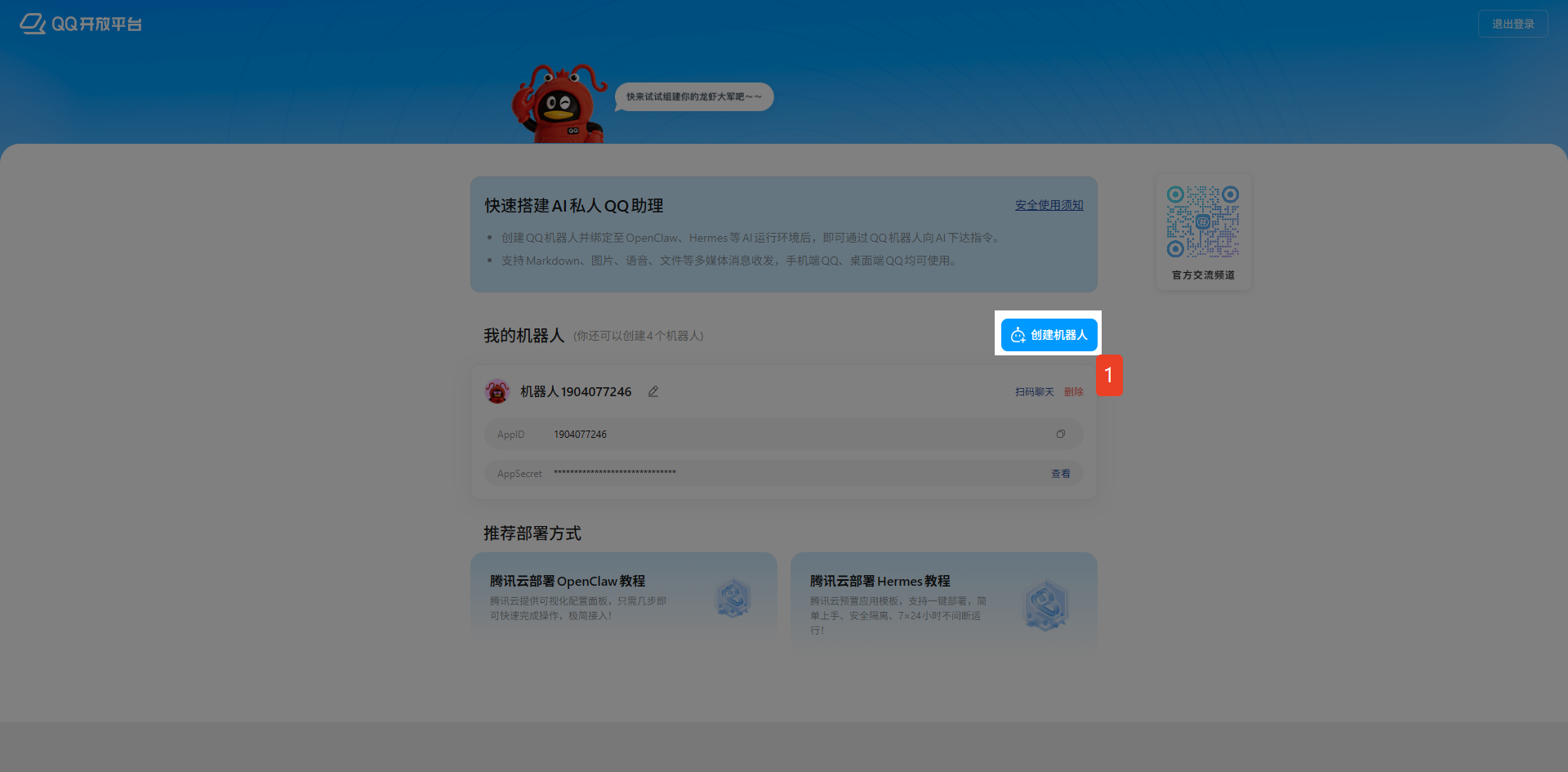
- After creation is finished, copy the "App ID and App Secret".
III. Methods to Obtain Feishu App ID and App Secret
3.1 Register and Log in to Feishu Open Platform
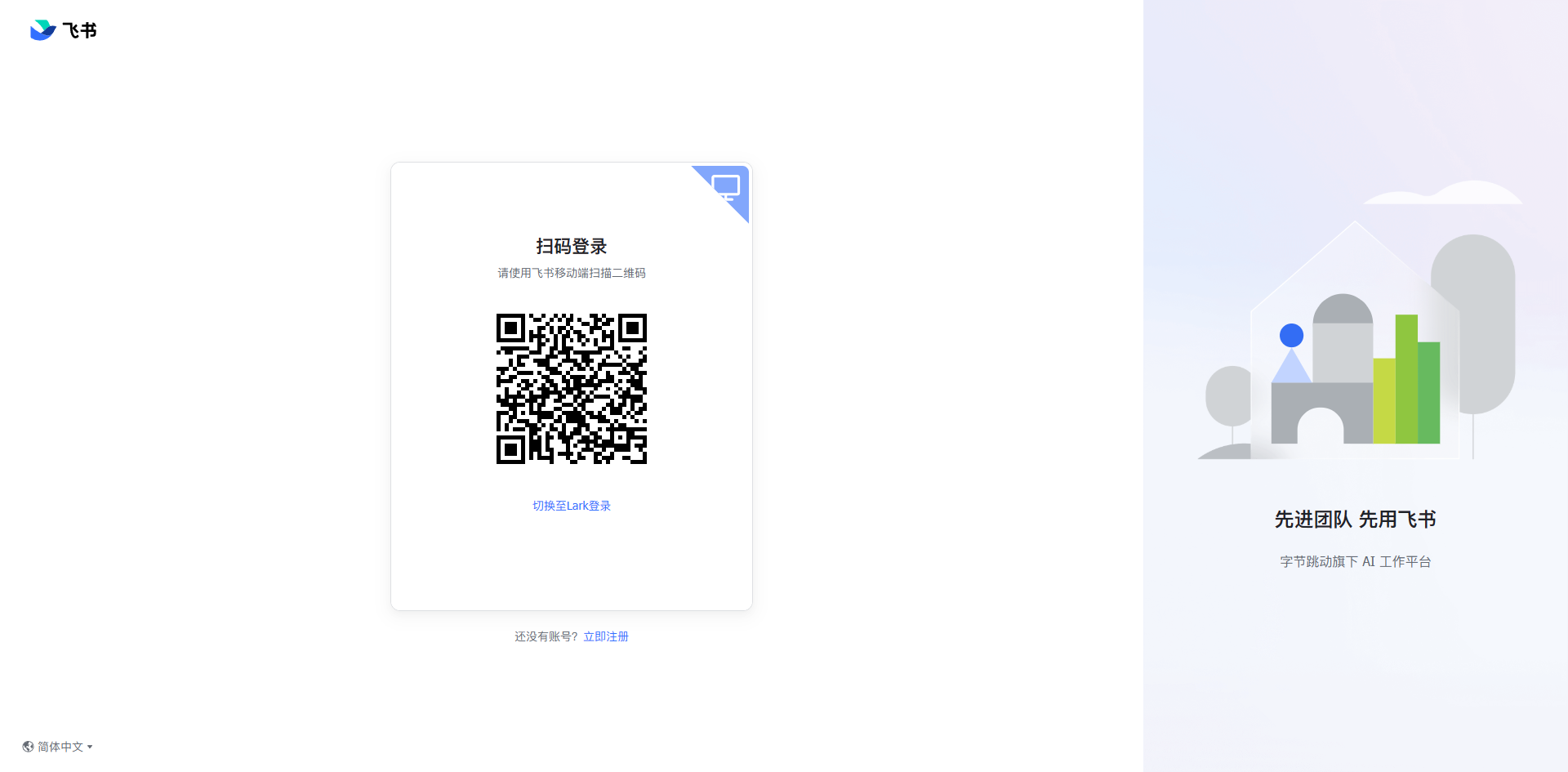
- Open a browser and visit the official website of Feishu Open Platform: https://open.feishu.cn/app
- Log in with your Feishu enterprise account via QR code scanning.
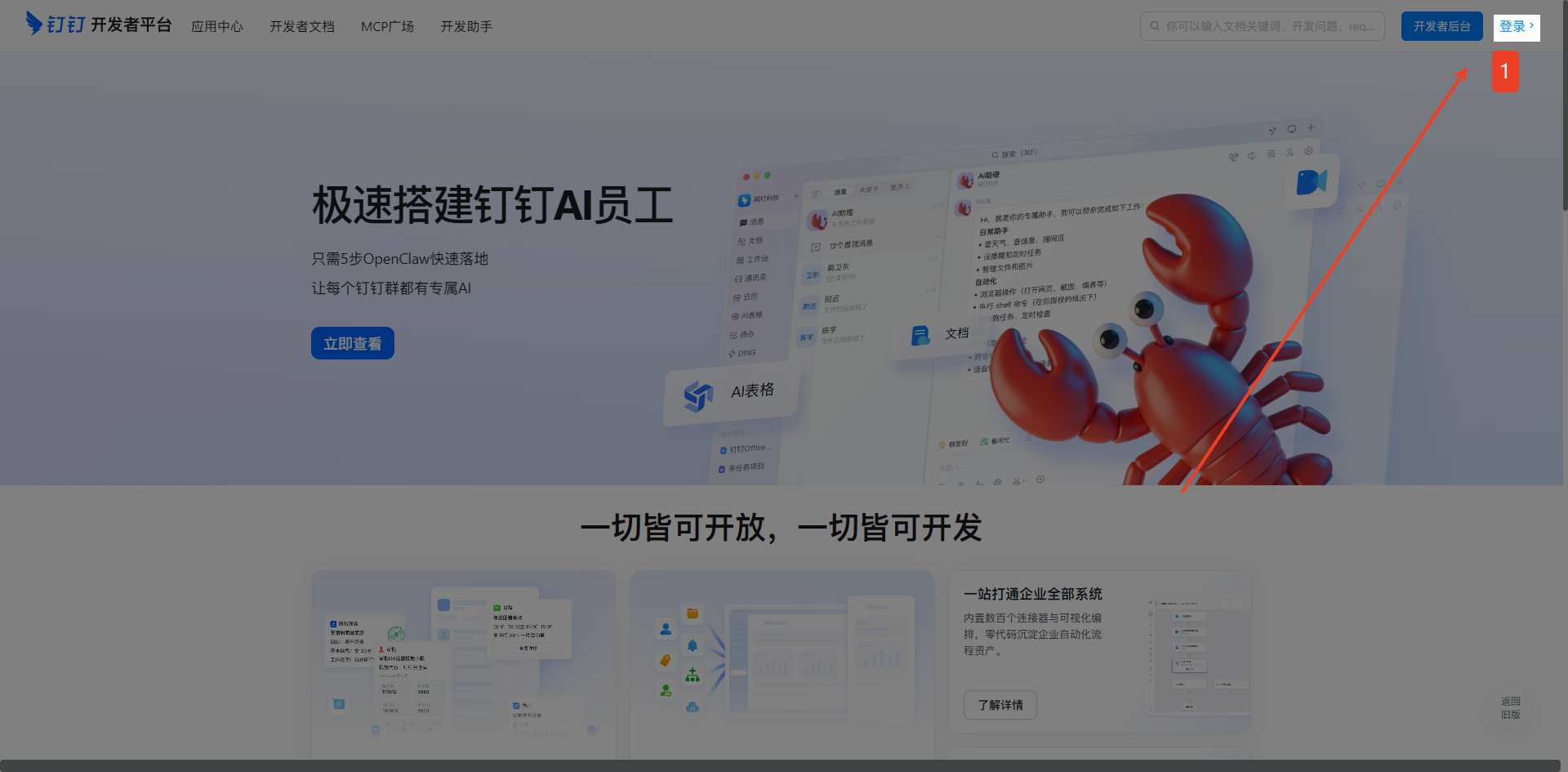
- Click "Developer Backend" in the upper right corner to enter the management interface.
3.2 Create an Enterprise Self-built Application
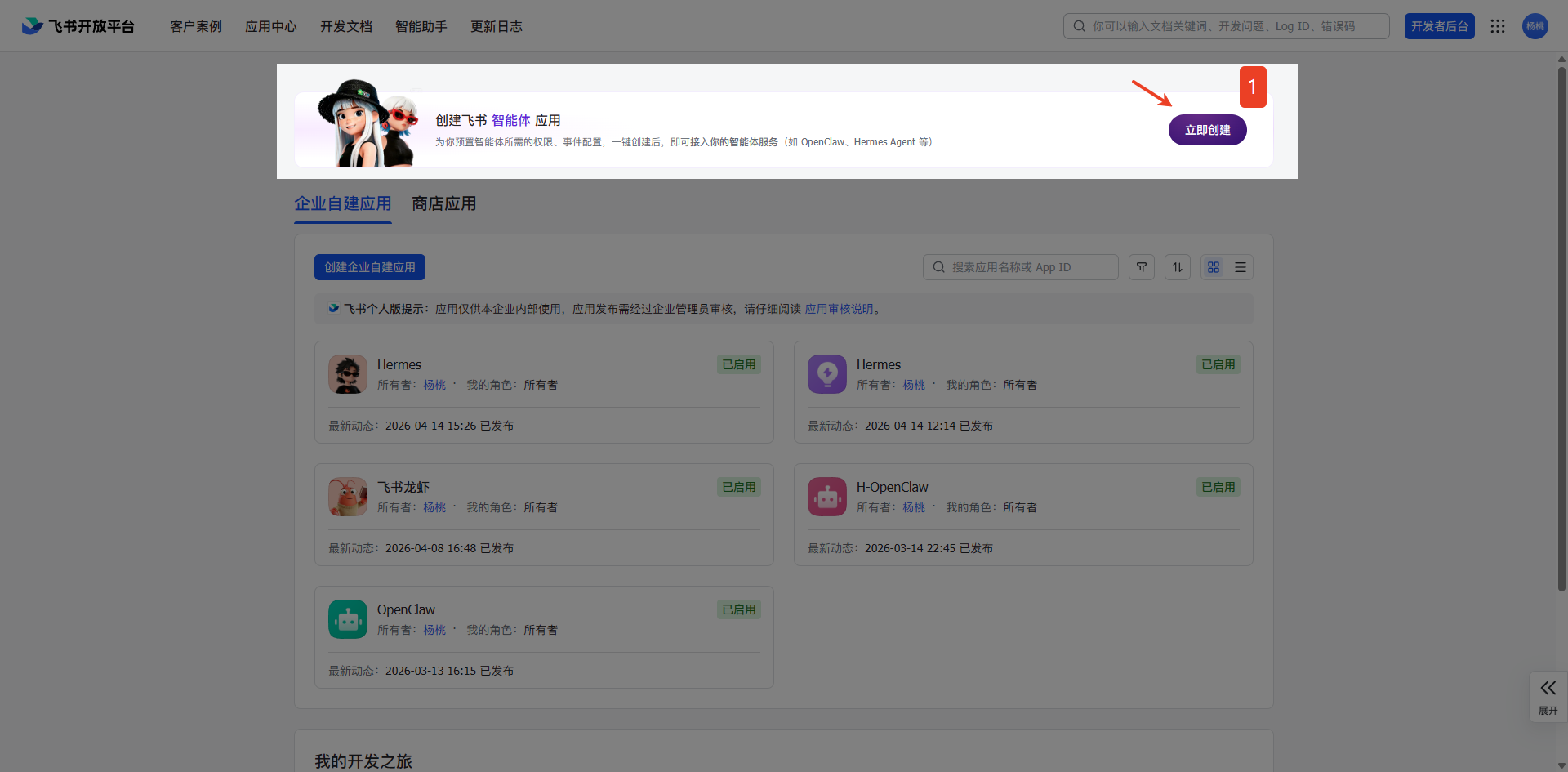
- On the homepage of the Developer Backend, find "Create Feishu Agent Application" and click "Create Now".
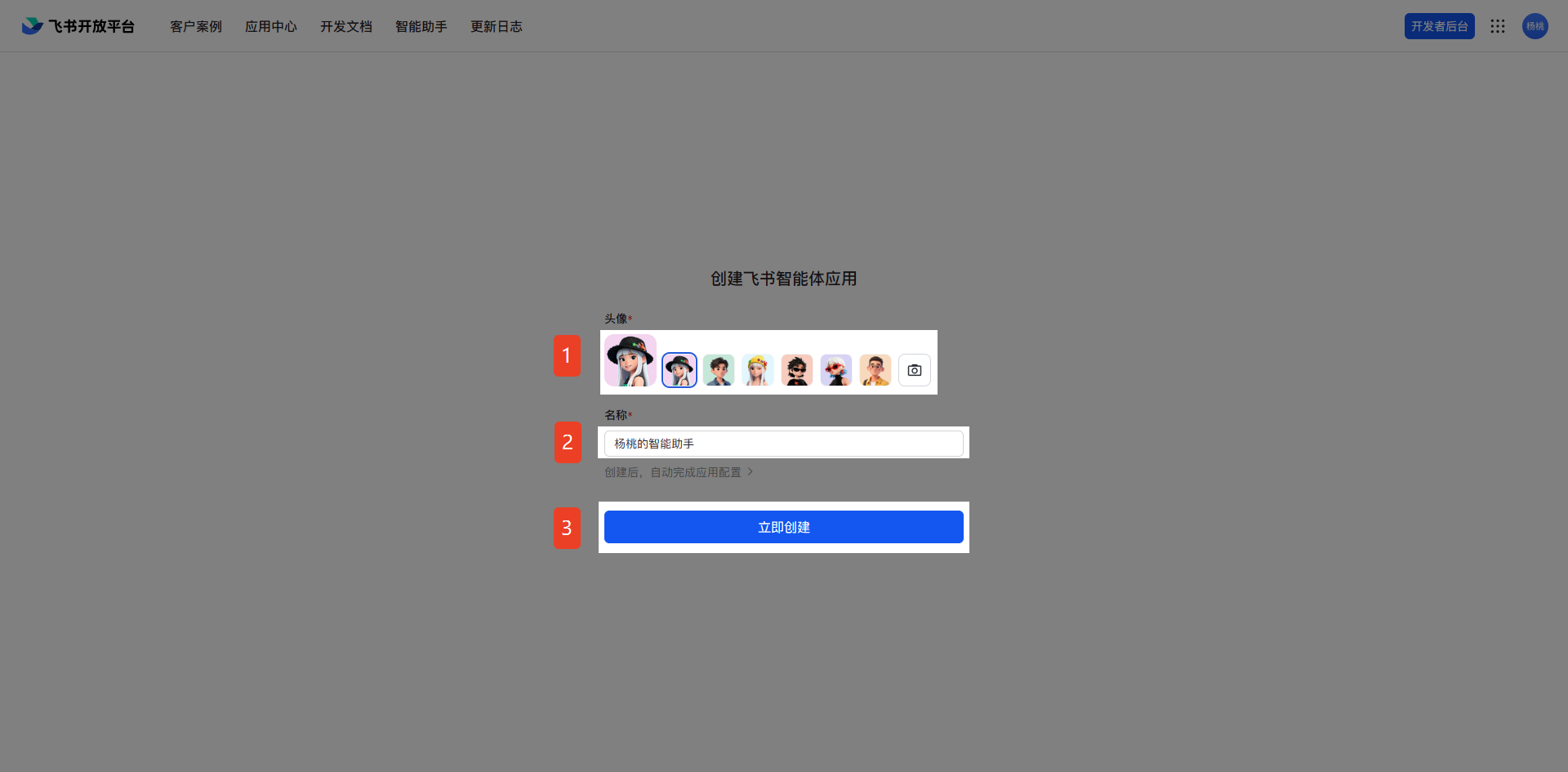
- Set an avatar and name for the application, then click "Create Now".
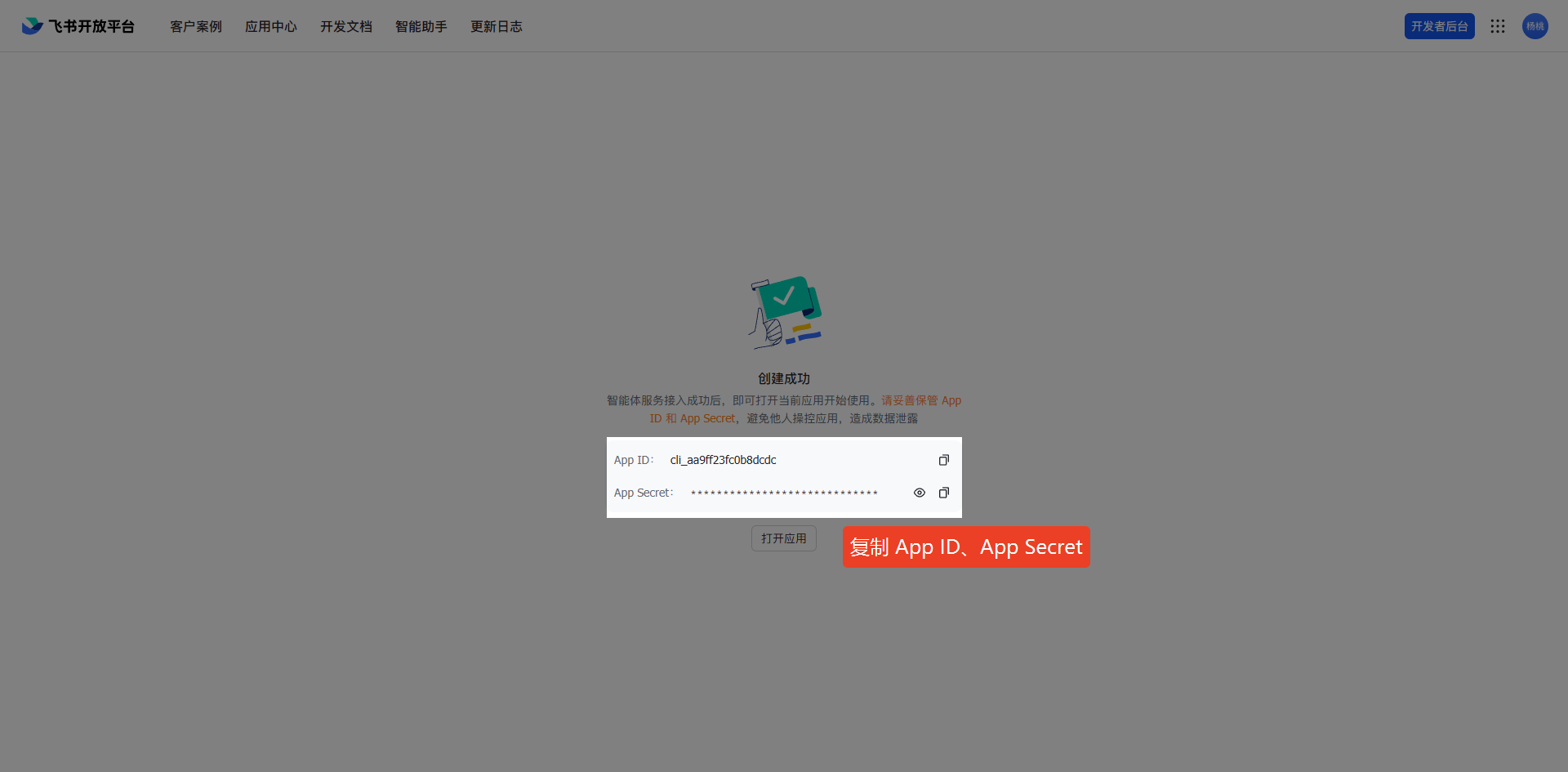
- After the creation is completed, copy the "App ID and App Secret".
IV. Methods to Obtain DingTalk App ID and App Secret
4.1 Prerequisites
- Select an organization where you have developer permissions, or obtain developer permissions for an organization by following the guide: Get Developer Permissions.
4.2 Register and Log in to DingTalk Developer Platform
- Log in to the Developer Backend.
- Log in with your DingTalk developer account via QR code scanning.
- Prerequisite: Select an organization where you have developer permissions, or obtain developer permissions for an organization by following the guide: Get Developer Permissions.
4.2 One-click Creation of OpenClaw Robot
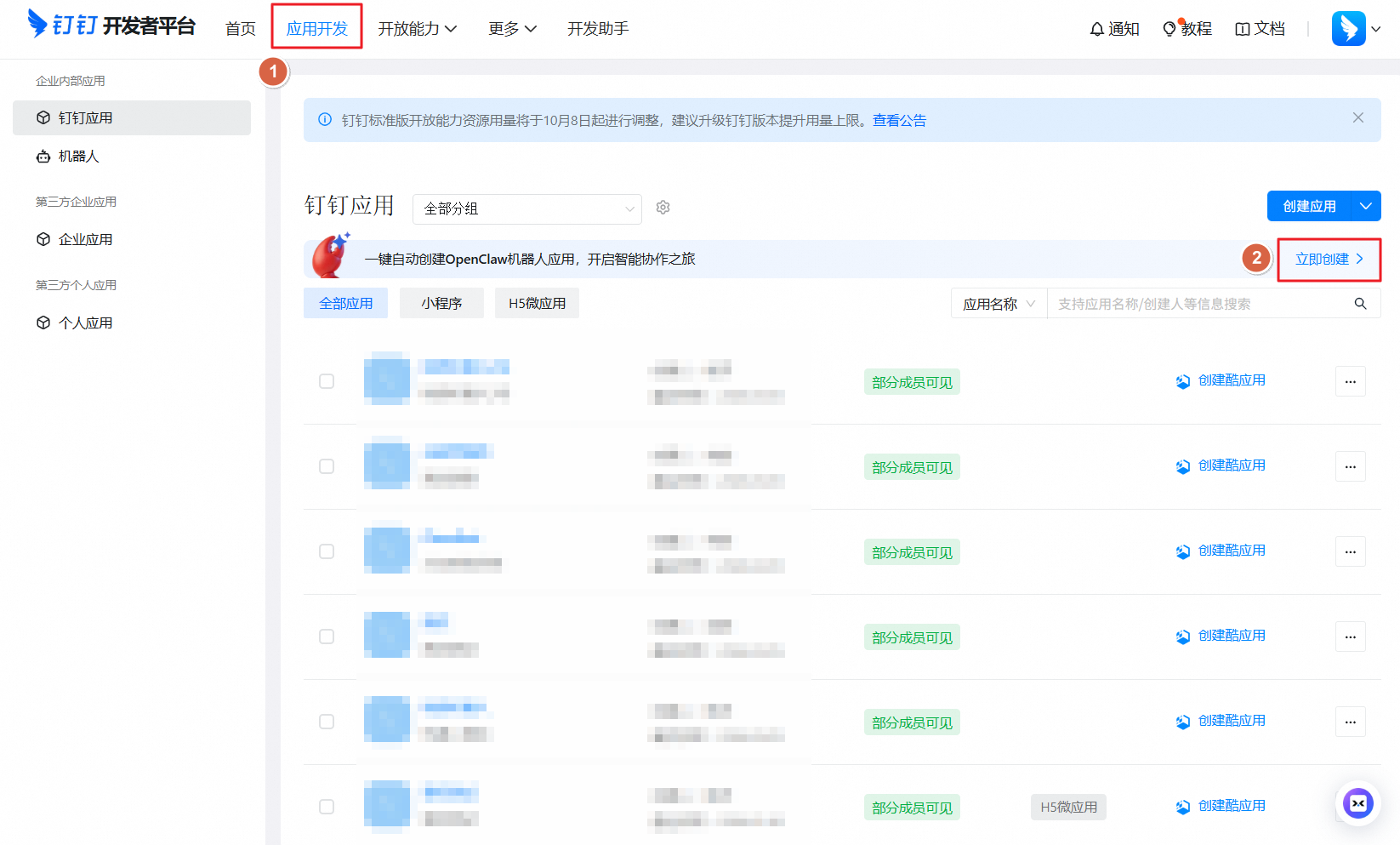
- Under "Application Development", click "Create Now" to create an OpenClaw robot with one click.
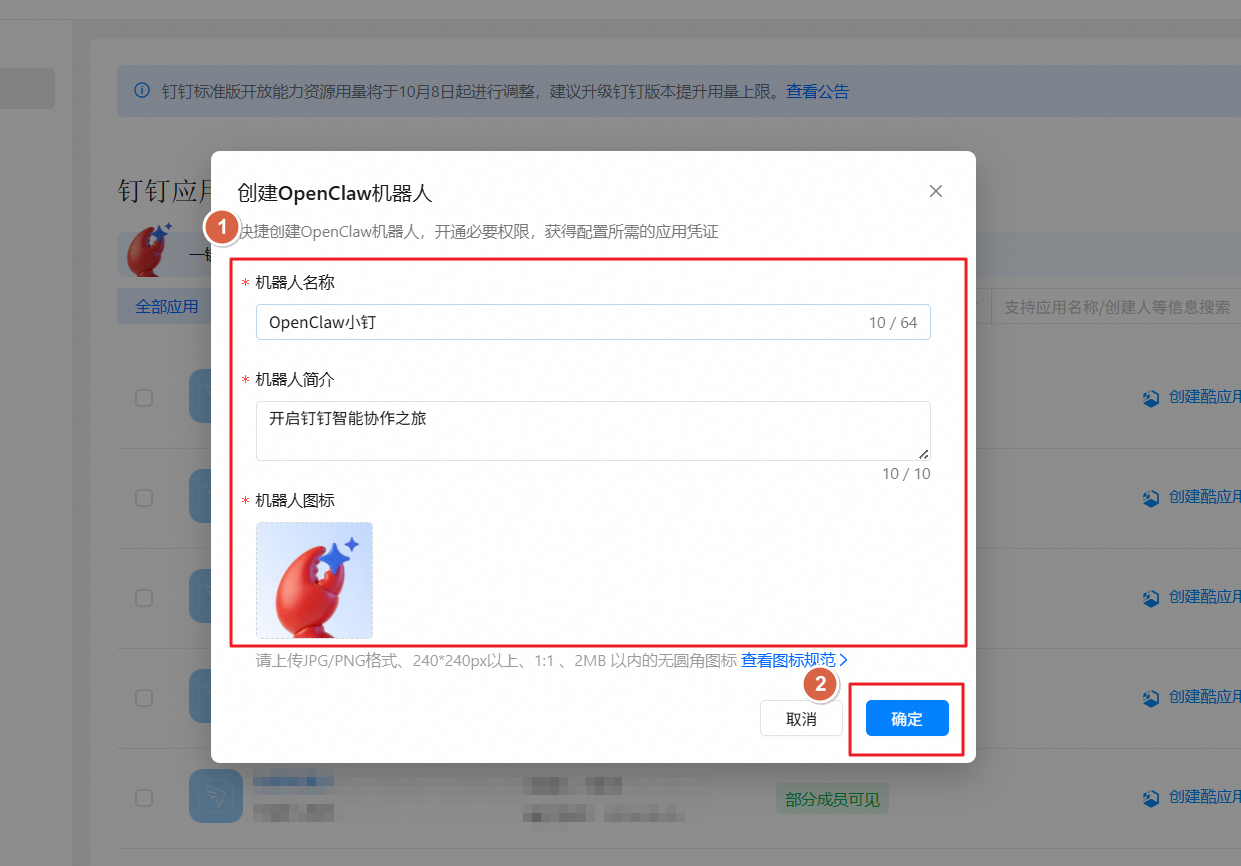
- On the OpenClaw creation page, fill in the basic information of the robot (including robot name, robot description, and robot icon), or directly use the default robot information and click "Confirm".
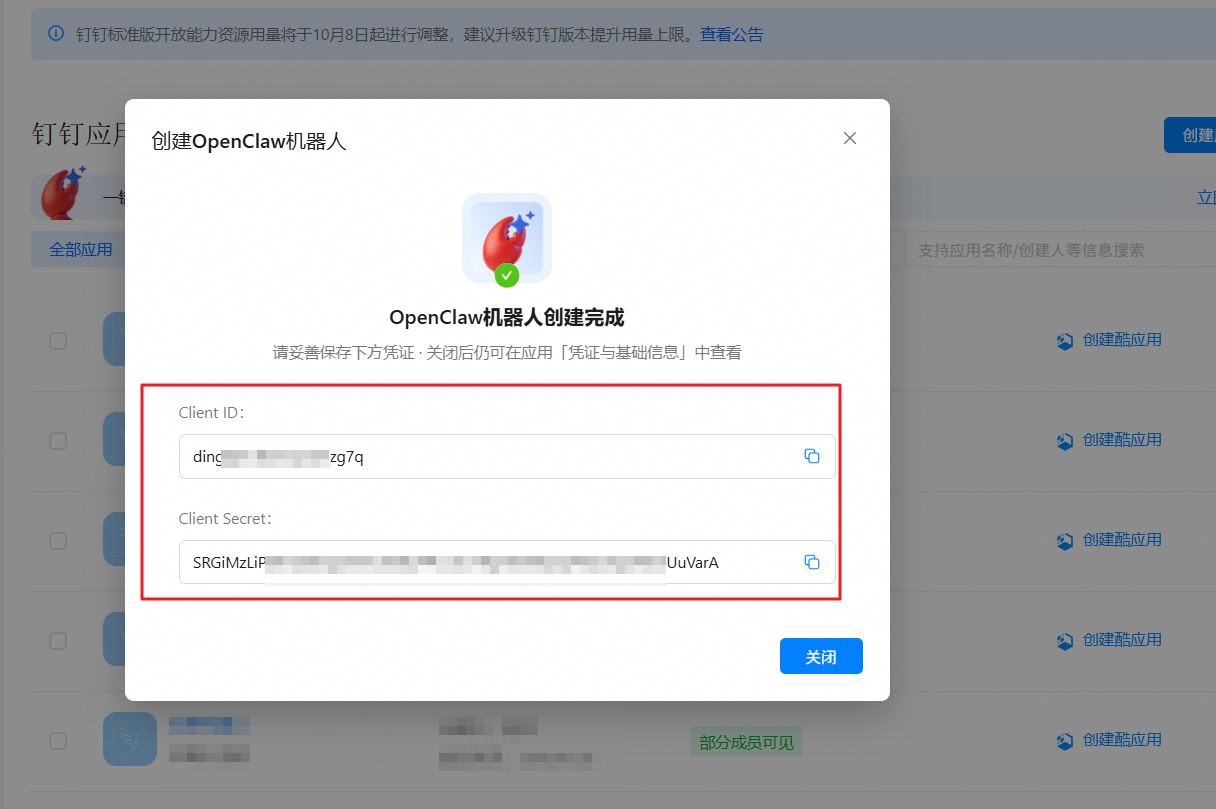
- After successful creation of OpenClaw, the application's Client ID and Client Secret will be displayed automatically. Please keep them safe for subsequent use.